
Both as a teacher and as a company manager it is useful to have a site where you can not only collect tests and worksheets, but where, by giving out a single link, anyone can fill them in even if they do not have an email address. This is what we created the QuizOffice website for, where you can register as a teacher, as a company, as a student and as a parent! What is the difference between them? We’ll tell you right away!
Registering as a company:
After registering, you can reach your user profile by clicking the user icon in the top right corner (the round one with your monogram on it), where you can type in the company’s name and email address, set a logo, and give further details such as the address of the registered office, tax number, etc. Here you can also change your password, or delete the account if you no longer need it.
In the case of companies, in order for the site to be fully usable, you first have to subscribe to one of the packages, and then invite at least one manager and/or one teacher who will prepare the worksheets. You can do this on the main page, in the menu on the left, under the headings “Managers” and “Teachers”. You just type in the email address and send the invitation. As soon as the other party has accepted it, they can start creating worksheets!
Registering as a private individual (as a teacher/manager):
In order to be able to validate the teacher or manager invitation, you first have to register on the site. After registering you will automatically be entered as a student, but do not worry, you will appear in the company’s system in the capacity in which you were invited. Indeed, you can even fill both roles at the same time; all that is needed for that is that they send you an invitation in both capacities.
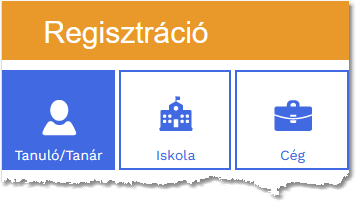
After registering, carry out the same process as the one required for companies. In your user profile, in addition to filling in your details, you also have the option of setting how you would like to use the QuizOffice site: as a student, as a teacher or as a parent. You can also fix the start page, so that you can use the site in the role you want when you log in.
In connection with a company, what is the difference between a teacher and a manager?
The manager role makes it possible for the manager to carry out the inviting/deleting of teachers instead of the company. This way the company password does not have to be given out to those who manage the site. It is enough simply to invite the colleague entrusted with the given task, and to take the option back from them if they happen to leave the company.
The teacher role makes it possible to create worksheets, tests and surveys in the company’s name.
It is important to note that the worksheets/surveys created in this way are the property of the company, and they may not be used outside the company!
- Student dashboard
Already on the start page you can see various worksheets which conceal an interesting worksheet connected to some theme or other.
In the “Scopes and study groups” menu you can see which groups you are in, and which study groups you are a member of within them. Clicking on this you can look at the worksheets, your results, the number of your completions, etc.
- Teacher dashboard
Since as a teacher you have the most editing options, in our view this is the most exciting dashboard. As a teacher you too can see the scopes and study groups you are in, and you can also create worksheets.
In the “Your company worksheets” menu item on the left you can see all the categories in which worksheets can be created, and you can also create new categories. On the right, above the category folders, you will find an “Empty categories too” slider, with which you can make the empty folders disappear. This way you will only see the ones that contain worksheets. And in the “Recording worksheets” menu item you can prepare the worksheet, about the process of which you can read in our next article.
- Parent dashboard
From here you can invite your children to the site, under the “Children” menu item on the left. In the same place you can also see the progress of the children you have invited.
Under the “Parent dashboard” menu item you can see a progress guide, where you can likewise access the statistical data of the children’s progress.