You describe it. It is ready.
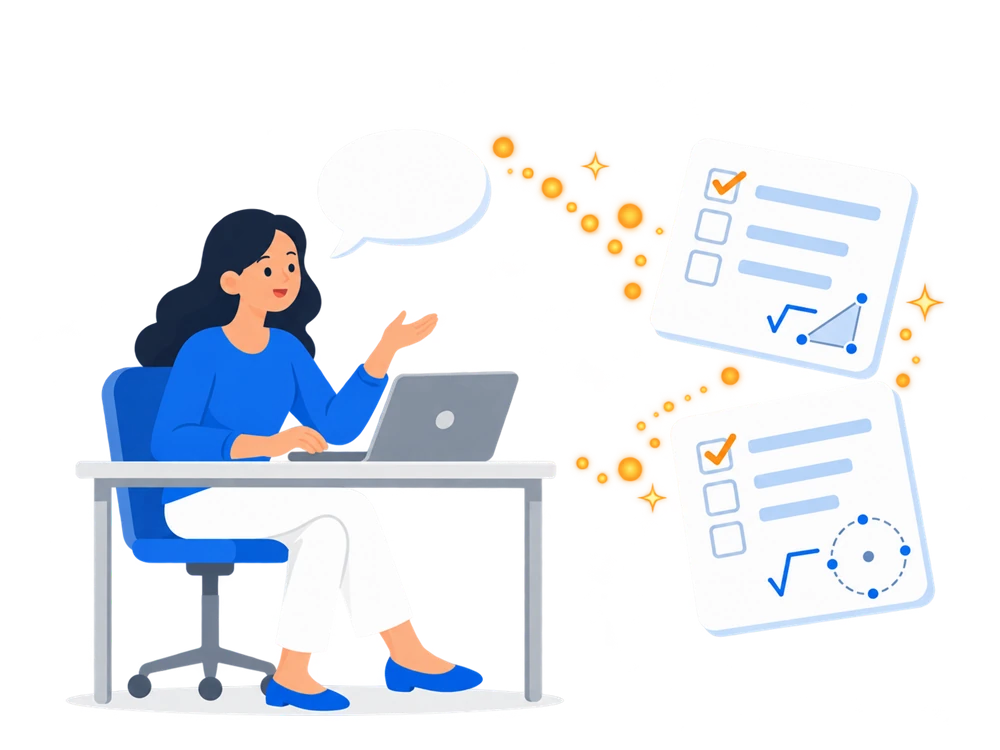
Connect your own AI assistant — ChatGPT or Claude — to QuizOffice, and ask for the worksheet in plain language. It writes the questions with the correct answers, formulas and images, even from your own course material. A draft is created: you review it, and you publish it.
What a request looks like
No menus to hunt for. You say what you want, the way you would say it to a colleague.
Make me a 10-question practice worksheet on the water cycle for year 7, shuffle the questions, and show only 5 of them per attempt.
The draft is ready: The water cycle — 10 questions, Science, year 7, shuffled, 5 questions per attempt. Want to review it?
Here is our fire safety training material. Make an easy, a medium and a hard set from it, and where there is a diagram, put it into the question.
Three worksheets are done, with the material attached to all three and download required. The diagram on page 49 went into question 3.
What it handles along the way
- Writes the questions with the correct answers, in 11 question types.
- Sets the category, the grade level and the completion rules.
- Puts formulas into the question and adds images.
- Uploads and attaches your course material, with required download if you want.
- Lists and rewrites your earlier drafts.
AI can get things wrong. Review the questions, the correct answers and the images before you publish.
Why it helps
You use your own AI
The assistant and the subscription you already pay for. QuizOffice charges nothing extra for the AI.
From material to questions
Hand it your notes or a PDF, and the question set is ready in minutes. Diagrams move into the questions too.
You always decide
The AI only creates a draft. Students see nothing until you publish it.
Your password stays yours
You sign in on QuizOffice's own page, and you can revoke access at any time.
What it can do on your behalf
- Creates a new worksheet draft.
- Writes the questions with the correct answers.
- Sets the category, the grade level and the completion rules.
- Puts formulas into the question and adds images.
- Uploads and attaches your course material.
- Lists and rewrites your earlier drafts.
What it never does
- It never publishes anything — that is always you.
- It sees no student data: no names, no results, no submissions.
- It does not modify a published worksheet, only a draft.
- It does not touch another teacher's worksheets or materials.
- It does not download anything from arbitrary web addresses.
- It never learns your QuizOffice password.
How do you connect it?
A one-off step, a couple of minutes. You need a QuizOffice account with the teacher or manager role, and an AI assistant that lets you add your own connector. The assistant drives the sign-in throughout — you never have to open QuizOffice yourself.
ChatGPT
- Settings → Connectors.
- New custom connector — name: QuizOffice, URL: the MCP address below, authentication: OAuth.
- Click Connect on the connector. This is what opens the QuizOffice sign-in page — you do not sign in separately.
- Sign in to your account, then click Allow on the consent page.
- In a new conversation, switch the QuizOffice connector on.
Claude
- Settings → Connectors → Add custom connector.
- Name: QuizOffice, URL: the MCP address below.
- Click Connect. This is what opens the QuizOffice sign-in page — you do not sign in separately.
- Sign in to your account, then click Allow.
- Switch the QuizOffice connector on in the conversation.
The QuizOffice addresshttps://app.quizoffice.com/quizOffice/mcp
Any other client works too, as long as it speaks Streamable HTTP and OAuth 2.1 with dynamic client registration. All you give it is this address; the client takes care of the rest.
Frequently asked questions
Does it cost anything?
Your own AI subscription covers the AI usage. On the QuizOffice side the feature is part of your account.
Can the AI see my students' data?
No. It only reaches your worksheets, your questions, your course materials, your images and the classification lists.
Where do the uploaded files end up?
In the Media library and among your Course materials, in a folder named after the worksheet.
How do I revoke access?
Disconnect QuizOffice in your AI assistant. If you do not use it for 30 days, access expires on its own.
Why can it not modify a worksheet?
Because it is already published. The assistant only edits drafts. Reopen it in QuizOffice, or ask for a new draft.
It did not set what I asked for.
It is probably working from stale knowledge. Refresh the connector in your AI assistant and start a new conversation.
What you can ask the AI for, how to phrase it, and worked examples: more questions and answers.
Try it — QuizOffice is free for teachers
Sign up, connect your assistant, and your first worksheet is ready today.